Hive Desktop 0.8.0 is out · Release notes

Run Claude Code, Codex and GitHub Copilot across your projects, side by side.

An agent-first desktop workspace for AI-assisted coding. Hive Desktop gives every project you're working on its own coding agents, Claude Code, Codex, GitHub Copilot or a mix, keeps track of what each one is doing, and tells you when one finishes or needs you.

  • Windows 10 and 11
  • Claude Code, Codex and GitHub Copilot
  • In eight languages
  • MIT licensed

How it works

Workspace, projects, agents.

Hive Desktop looks and feels like a streamlined VS Code, but it's built around agent sessions rather than a text editor.

  1. Open a workspace

    Any folder whose subfolders are your projects. Shared notes, skills and MCP servers live in its .hive folder, ready to commit and share with your team.

  2. Mark what you're working on

    Only active projects run sessions, show live status and notify you, so a workspace with dozens of projects stays quiet.

  3. Add agents

    Claude Code, Codex, GitHub Copilot or a mix, up to twelve in each project (24 in Settings → Advanced), or a whole team from a template. Switch away and they keep working in the background.

Features

Everything you need to run agents in parallel.

Hive keeps an eye on every session so you don't have to, and gives you the tools to plan, review, steer and merge what your agents do.

A team of agents

Every project gets its own team.

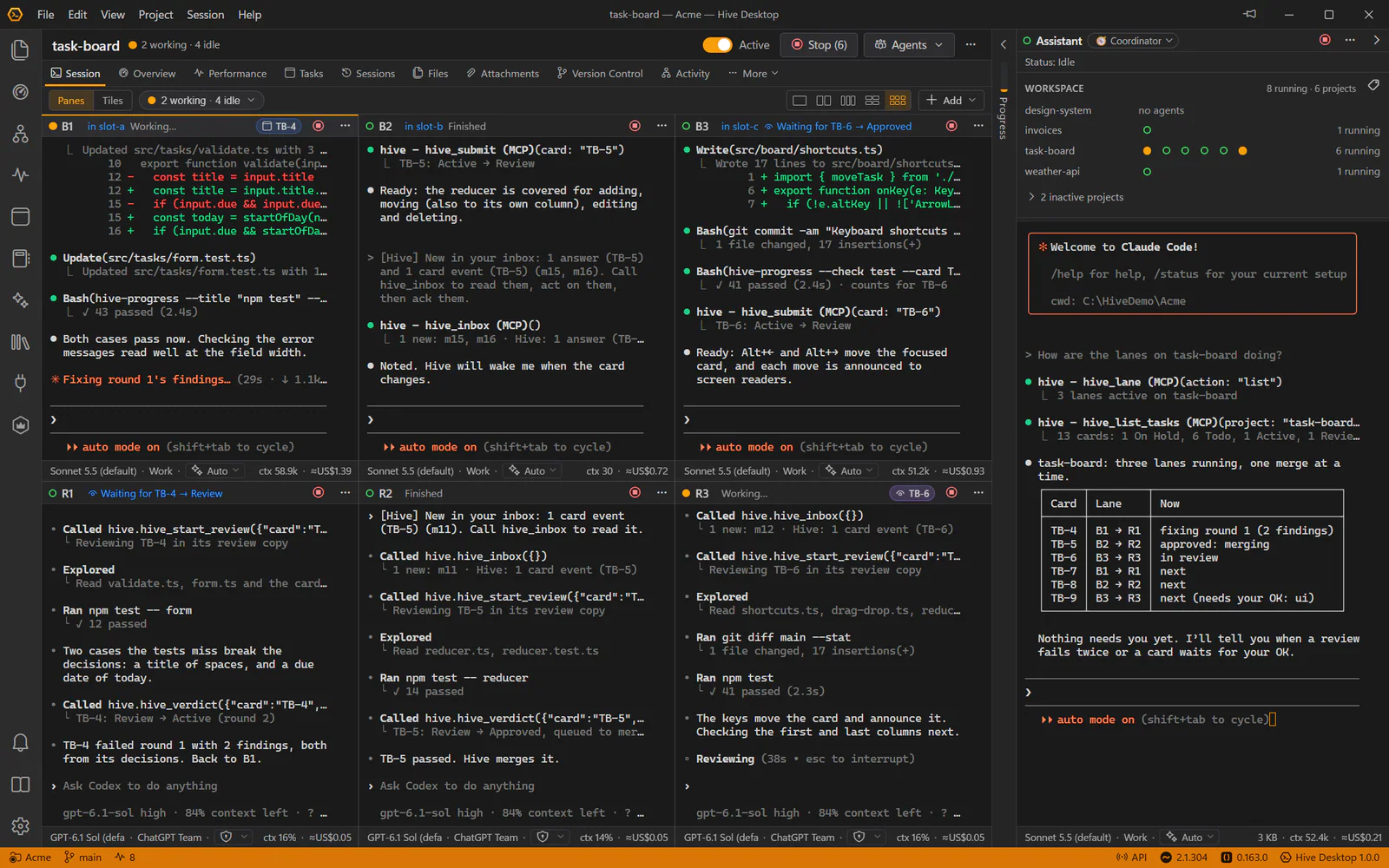
Run agents across as many projects as your machine can handle. Inside a project, add up to twelve agents, six to a page: builders in their own worktrees, reviewers, a docs writer, each with a role. Save a team as a template and load it into any project, or add one agent from it.

  • Each agent chooses its provider, name, role, model, effort and permission mode, and which MCP servers it gets
  • Need more than twelve? Agents per project in Settings → Advanced goes up to 24, and shows what they cost your computer in memory
  • Loading a template reuses clean worktrees instead of piling up new ones, and says who goes and who comes first
  • Every batch button says how many agents it acts on, in one colour per action: Stop (12), Start New (12), Remove All (12)
  • Only the terminals on screen use the graphics card, so dozens of background sessions stay light
Editing a template of twelve agents: six Claude Code builders, each in its own worktree, and six Codex reviewers in the project folder, laid out in a grid of six

Claude Code, Codex and GitHub Copilot

Choose the agent for the job.

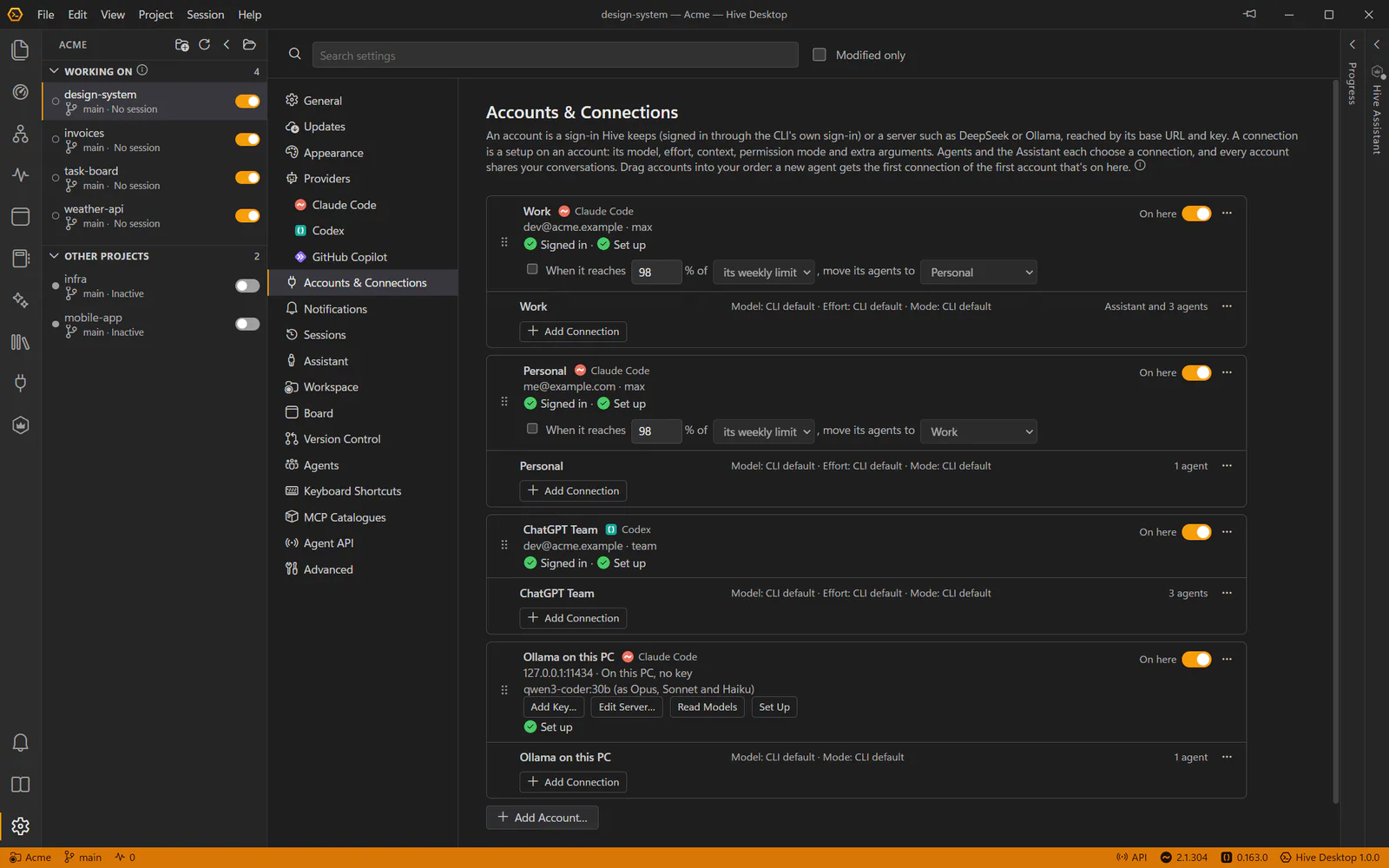
Each agent chooses its provider, so one project can mix them: Claude Code agents building while Codex agents review. Hive shows each CLI’s own terminal, exactly as it looks when you run it yourself.

Hive works with the GitHub Copilot CLI too. Copilot agents get what the others get: live status, file locks, the workspace’s skills and MCP servers, Hive’s tools, sessions you can resume, and their tokens. They run on your own Copilot plan.

Hand Over to… passes an agent’s work to another, of any provider, through a handover.

  • Help → Agent Setup installs and signs them in, and says which versions this Hive was tested with
  • A CLI you install from Agent Setup is found straight away, without restarting Hive
  • New agents use a CLI you have installed: the default provider starts as Automatic, so nothing asks for one you don’t use
  • New models appear as your CLI and plan offer them, without waiting for a Hive update
  • Hive tells you once when a sign-in expires, and its agents show Needs sign-in
  • Skills, MCP servers, file locks, status, transcripts and costs work for all three

Claude Code Anthropic

Sign in with a Claude plan or an Anthropic Console account.

  • Manual
  • Accept edits
  • Plan
  • Auto
  • Don’t ask
  • Bypass

Codex OpenAI

Sign in with a ChatGPT plan or an OpenAI API key. Hive starts its one-time Windows sandbox setup for you.

  • Read only
  • Ask for approval
  • Approve for me
  • Full access
  • Plan

GitHub Copilot GitHub

Runs the Copilot CLI with your GitHub account and its Copilot plan; Copilot Free runs the Auto model only. Agent Setup says who it’s signed in as, and how: copilot login, the GitHub CLI’s login or a COPILOT_GITHUB_TOKEN. Accept edits is its default mode.

  • Accept edits
  • Ask
  • Plan
  • Autopilot
  • Allow all

All three get the workspace’s skills, MCP servers and Hive’s own tools, with file locks, live status, transcripts and costs.

Hive Assistant

An Assistant that runs the work.

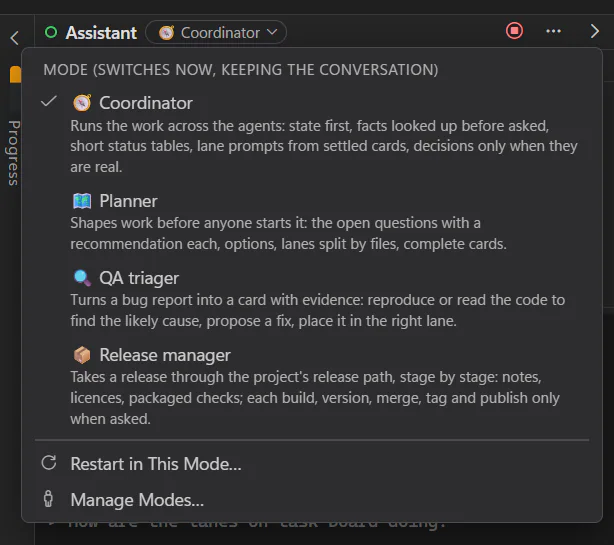
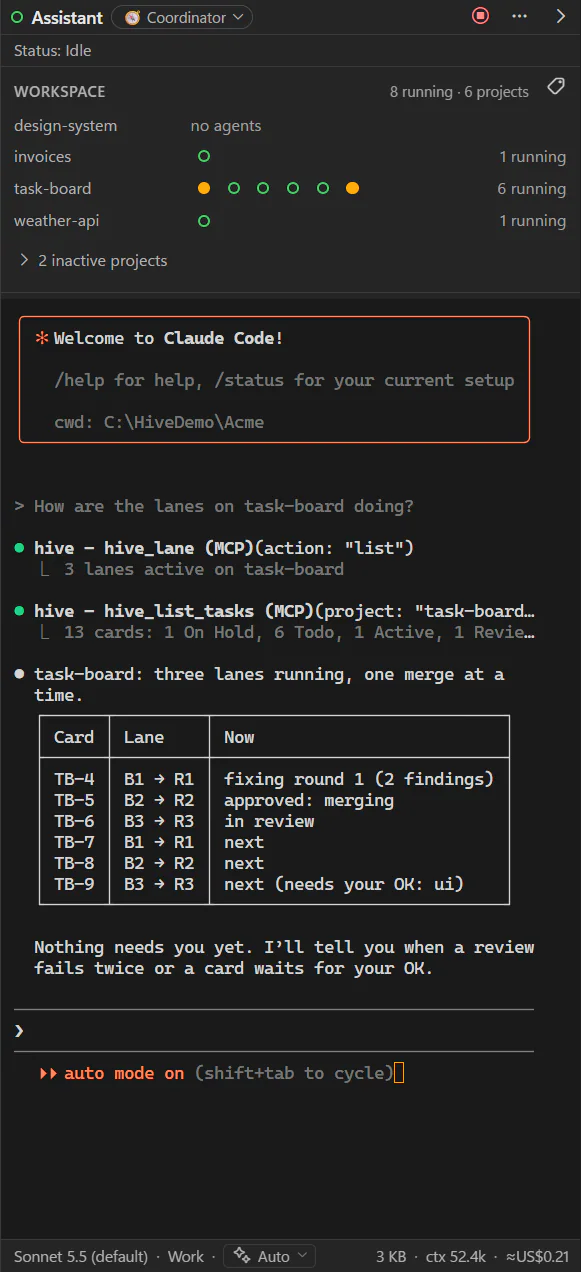
Each workspace has a Hive Assistant in a panel beside your agents. Ask it what the agents are doing, about any project, or for a plan or a review. Let it, and it runs the work: it plans cards, briefs and starts agents, follows each lane to the end and asks you only for real decisions. A line under its header says what it is doing, or which cards it is watching.

  • Four working modes: Coordinator, Planner, QA triager and Release manager, or write your own
  • Ask it about any setting: it explains it and, if you let it, changes it
  • You decide how far it goes: look and advise, control agents, or create projects too
  • Everything it did is listed in its panel
The Hive Assistant's mode menu: Coordinator, Planner, QA triager and Release manager, each with what it puts first

Task board and card loops

Build, review, pass: card by card.

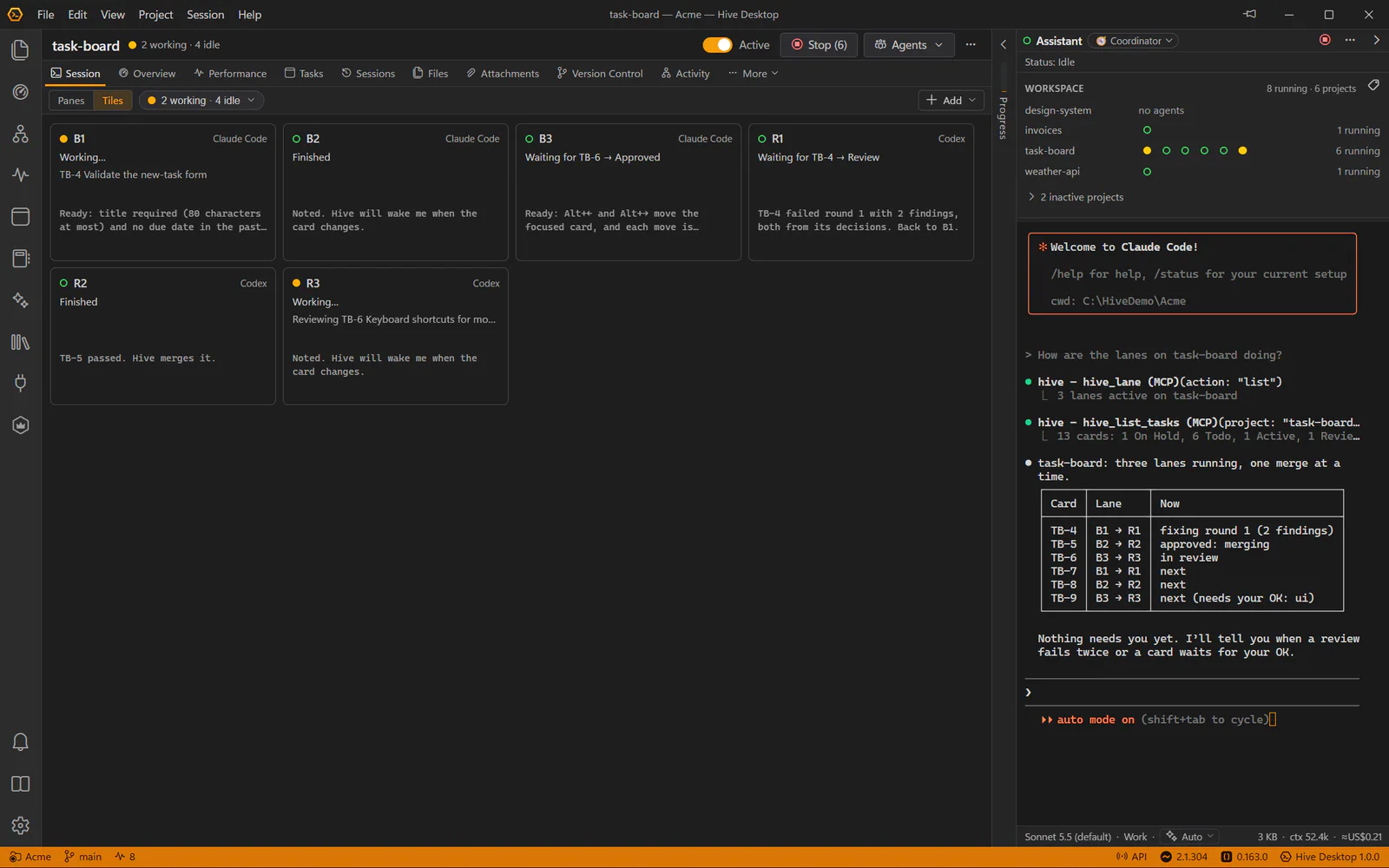
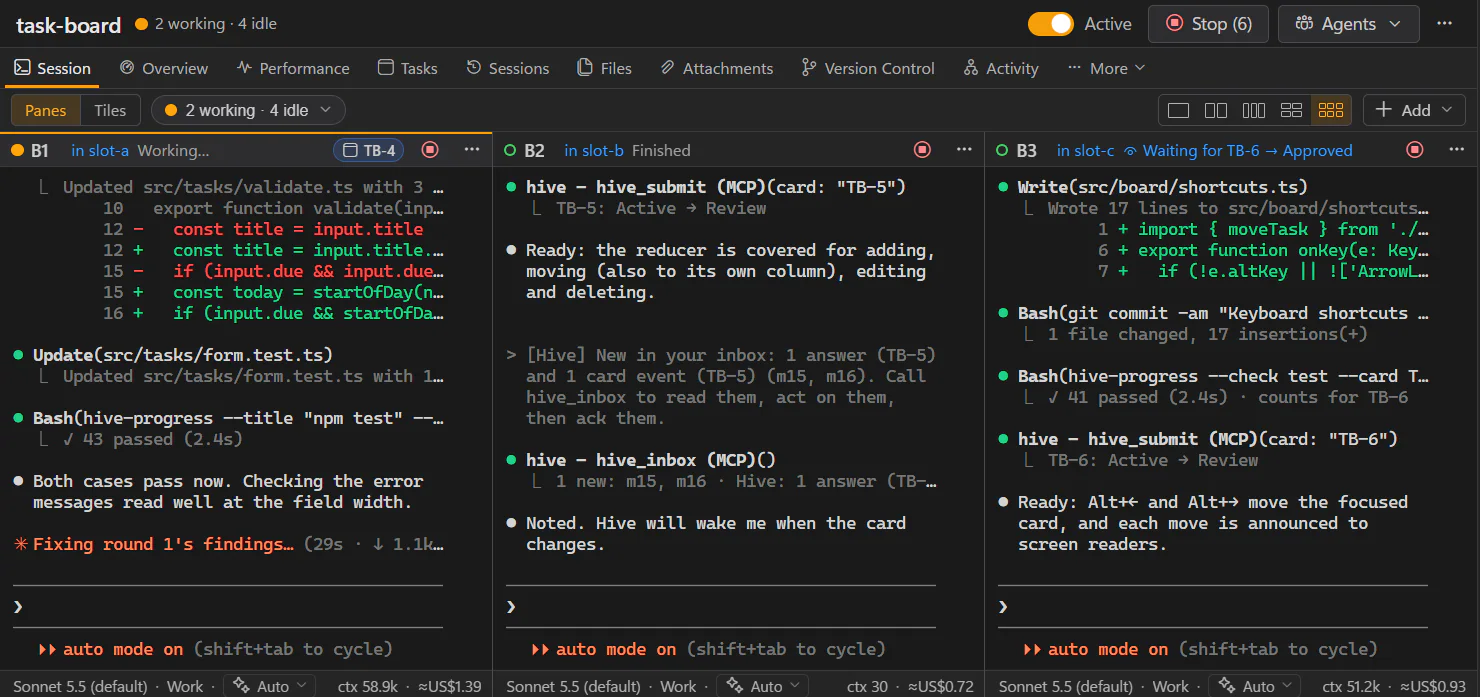
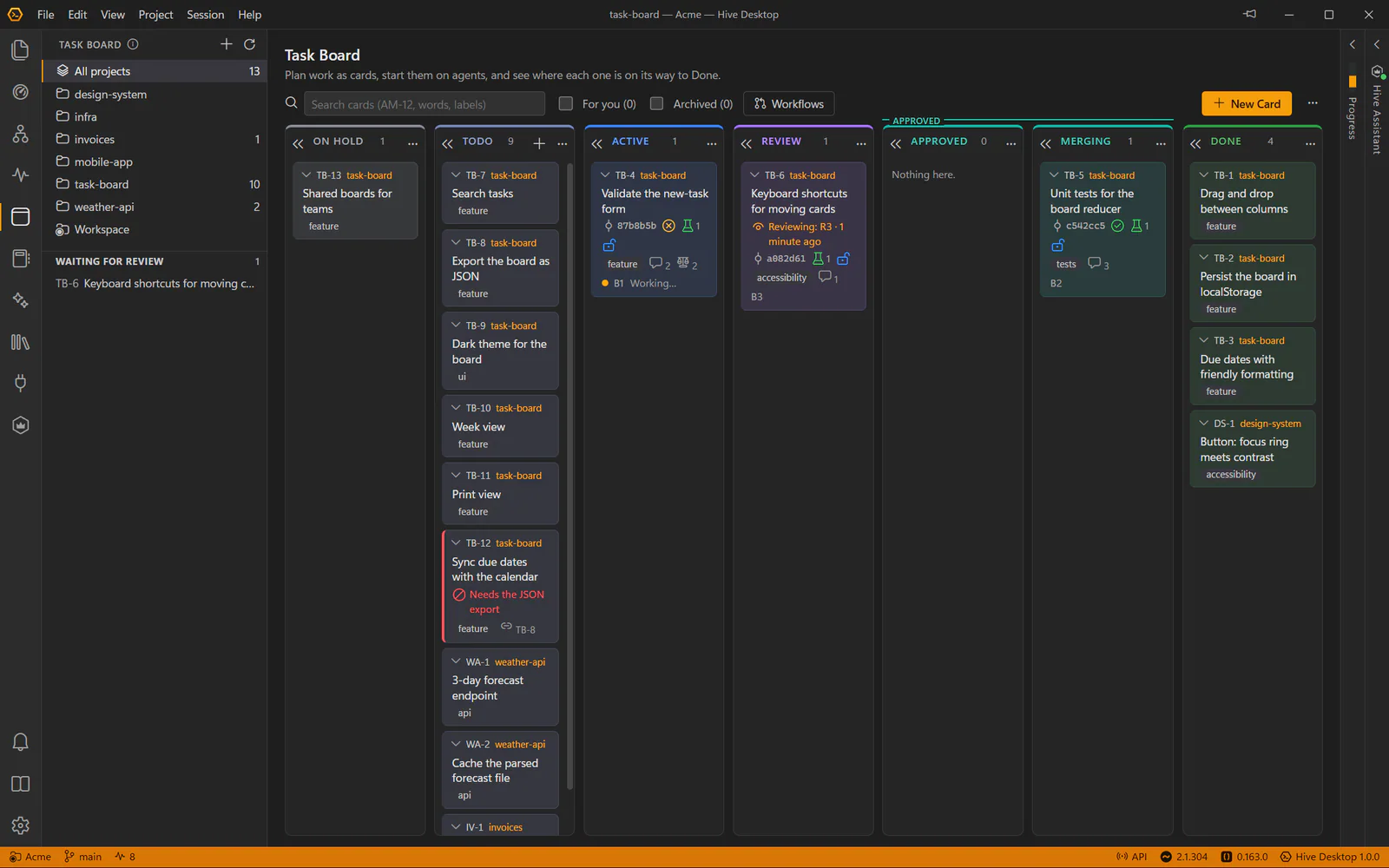
A task board for the whole workspace, from On Hold and Todo through Doing, Review and Passed to Done. Give two agents a list of cards and they take them in turn: the builder does a card and moves it to Review, the reviewer passes it or sends it back with findings. While one waits for the other it isn’t running: Hive wakes it when the card changes.

  • A card shows who is working on it and who is reviewing it, and a loop that stops waiting shows as stalled
  • An agent that needs your decision blocks the card with its question and tells you, so nothing waits unseen
  • Done means finished: a builder in its own worktree moves its Passed cards there once its branch is merged
  • Archive a whole column, or the whole board, and undo it
  • Fold columns and cards you don’t need, and drag an open card out of the way
The task board: On Hold, Todo, Doing, Review, Passed and Done, with each card’s agent, three under review by Codex reviewers, a stalled card and a blocked one

Decisions

What you decided stays on the card.

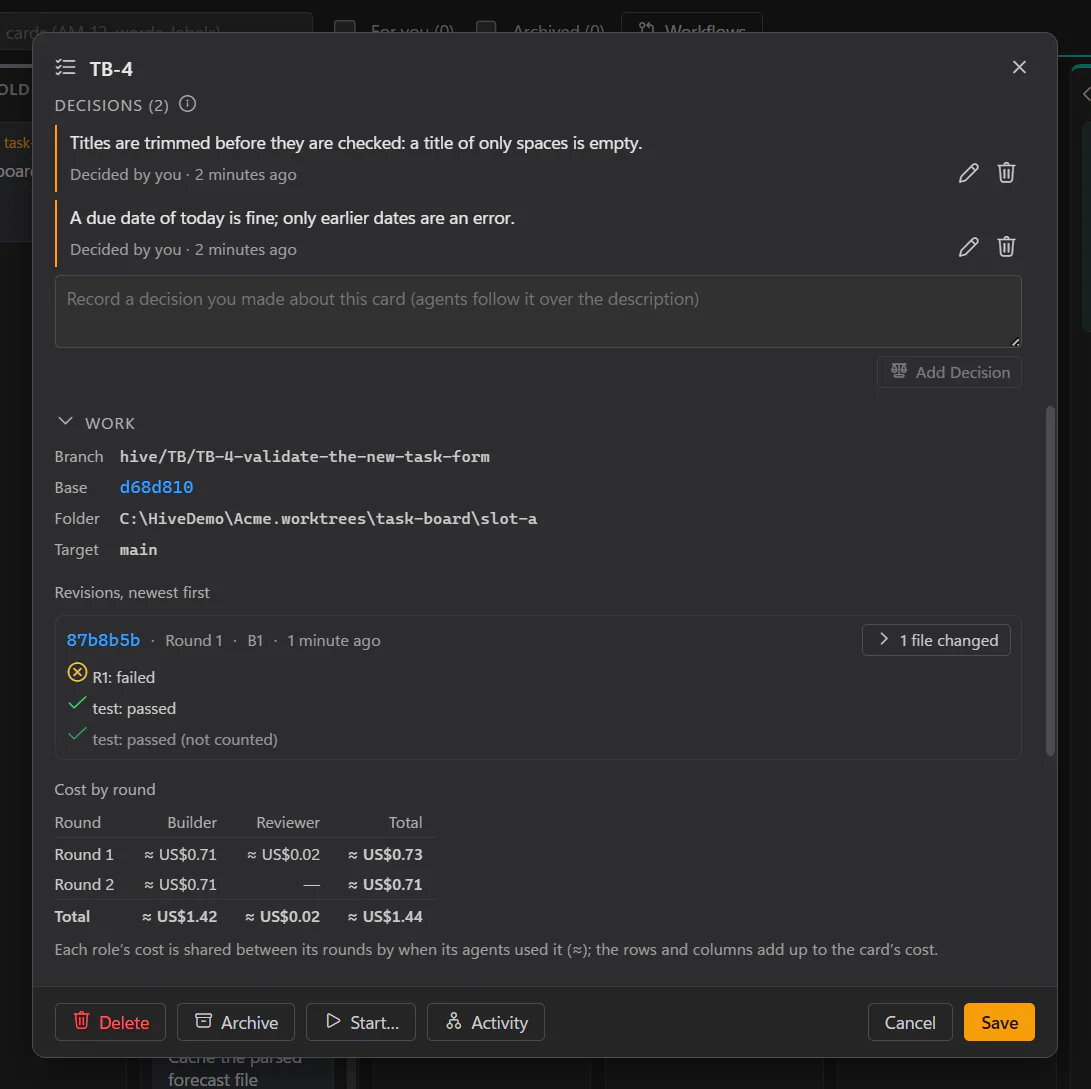
What you decide about a card (its scope, a wording, a default, “option B”) goes in its Decisions, pinned above the comments, not buried in them. Agents follow them over the description, and a reviewer fails work that ignores one.

  • An agent working on the card is told when a decision is added
  • The Assistant records the decisions you tell it, in your name
  • Reviews and comments stay below, numbered by round
A card's dialog: its description, two decisions pinned above the comments, and a reviewer's failed review with two numbered findings

The merge slot

One merge at a time.

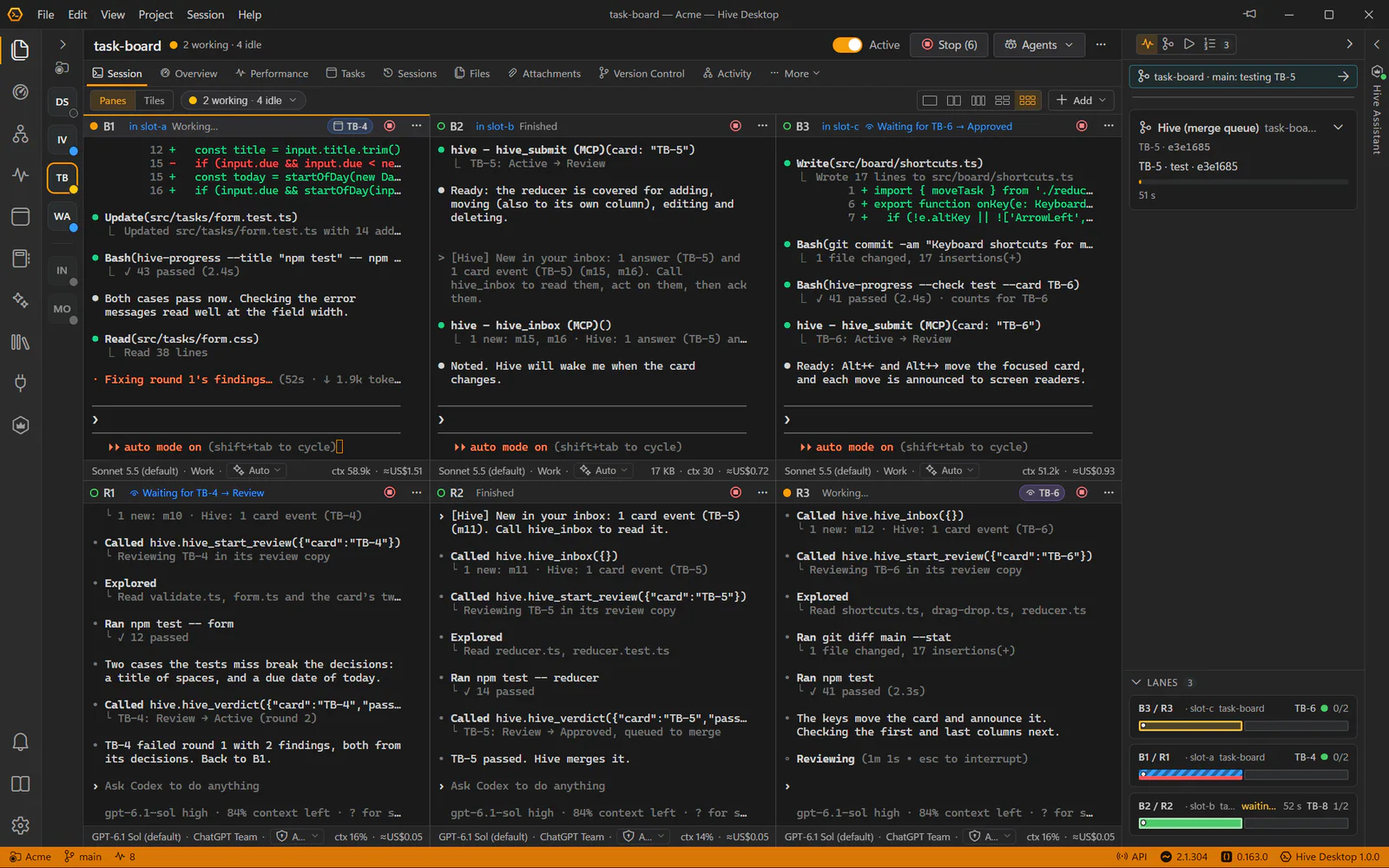
When several agents finish together, each merging main into its branch, checking it and merging, one merge can land while another is still checking. So agents take turns: each claims the project’s merge slot, merges, runs its checks and lets it go, while the others wait in line. The Progress panel shows who holds it, who is waiting, and how far every long run has got.

  • Your own merges from Hive take the slot too
  • A slot is never stuck: it is freed when its agent’s session ends, or after an hour without progress or a new claim
  • Wrap any command in hive-progress to see its steps; failures tidy themselves away
  • Each card loop is a lane at the bottom of the panel: its pair, its cards and where each one is, in the order you drag them to
  • Recent runs stay in the panel’s history, with how long each took
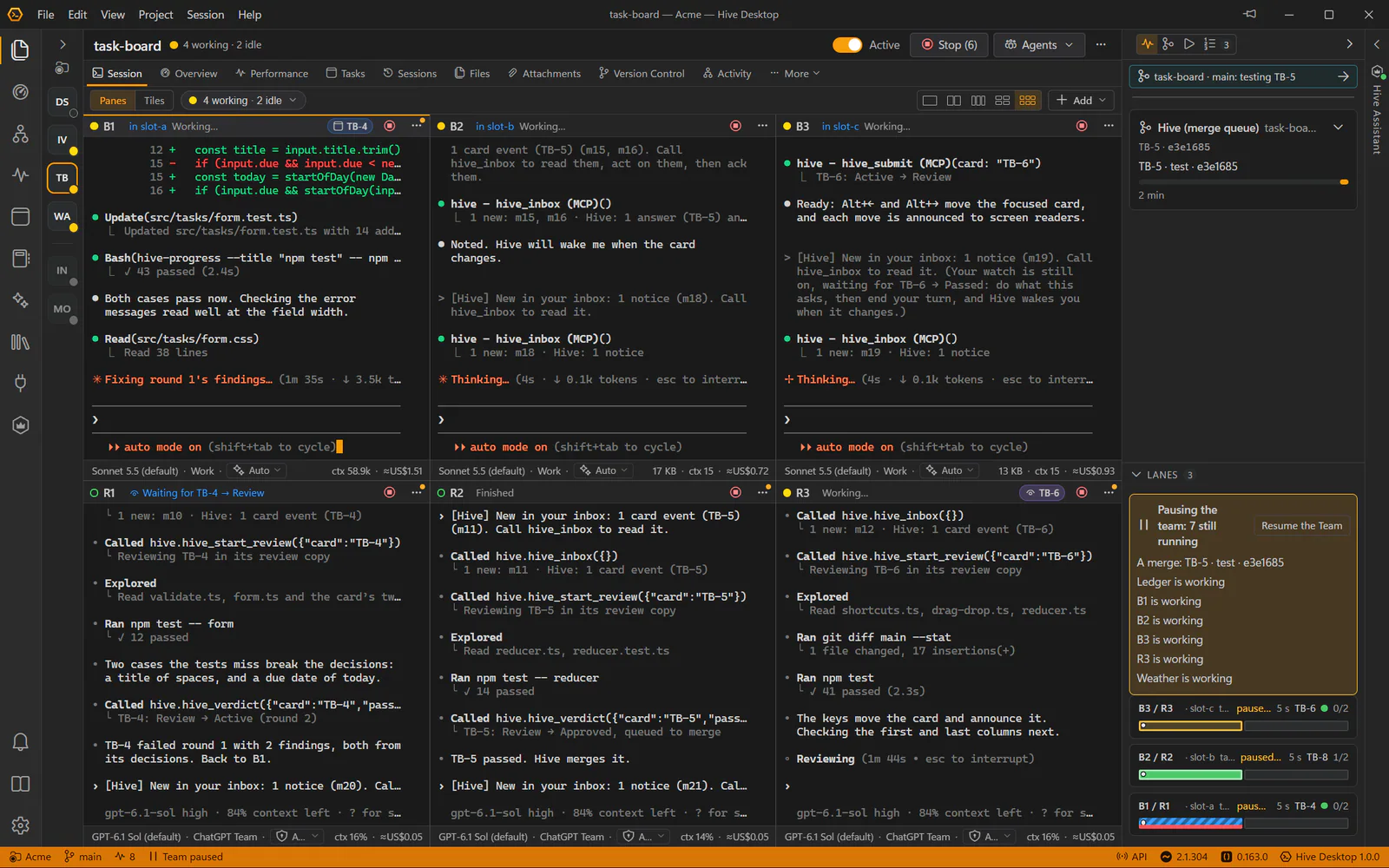
The Progress panel beside six working agents: one agent merging with the merge slot while two wait, a failed test run, checks at step 2 of 4, and recent runs

Worktrees and merge

Let agents work apart, then merge.

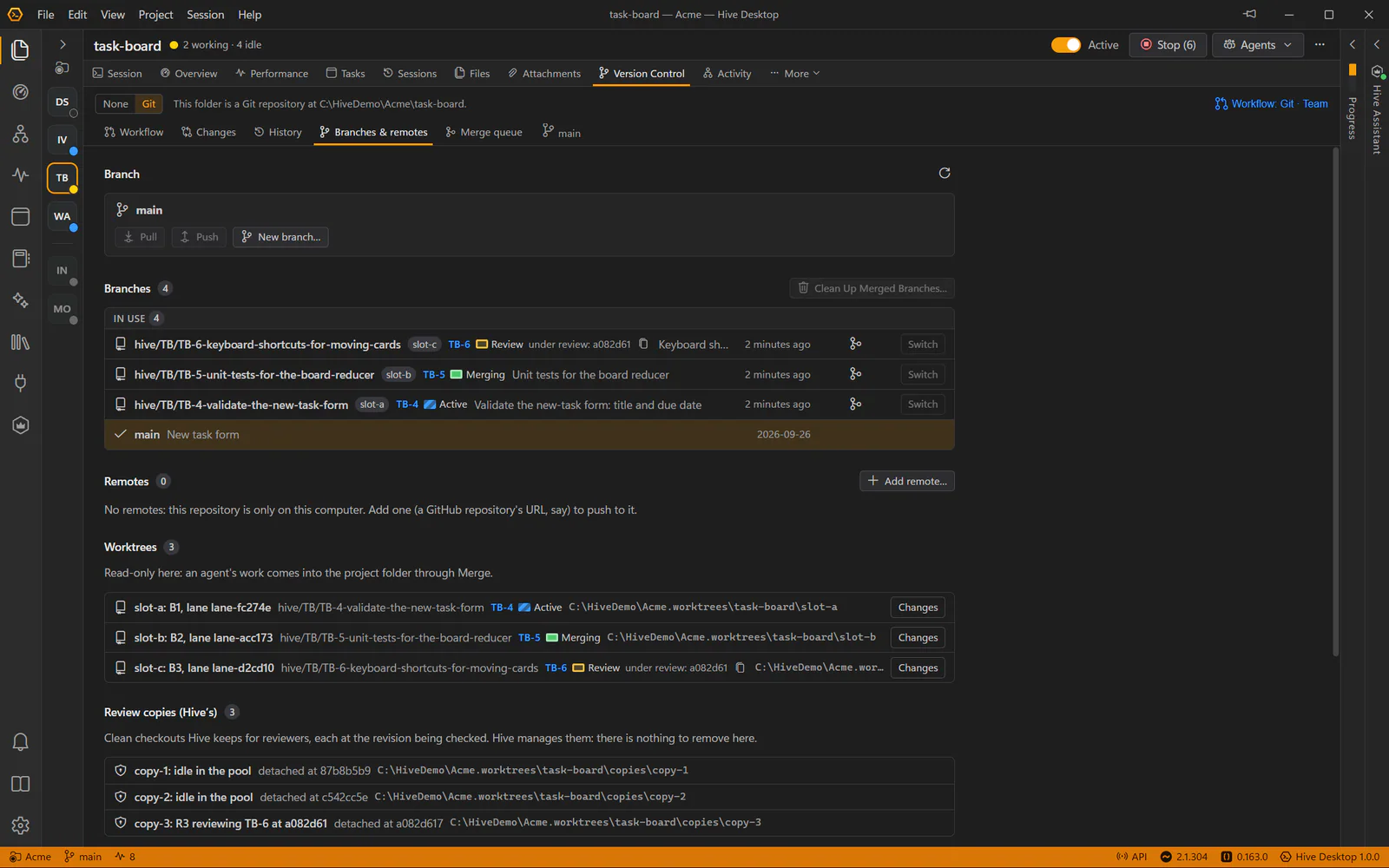
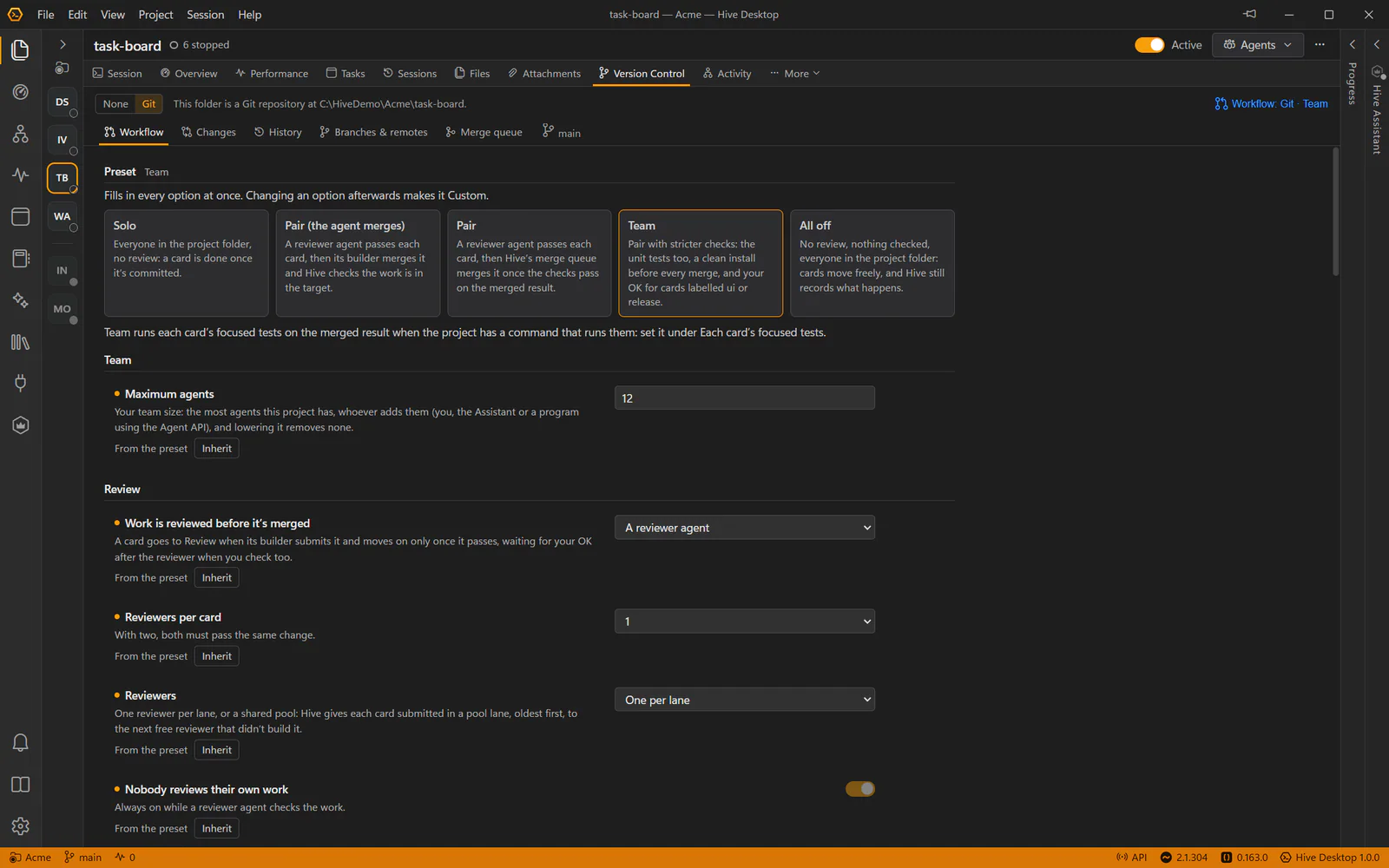
Give an agent its own git worktree on its own branch and its work stays separate until you're ready. Hive creates the worktree, copies your .env files and runs a setup command. Review everything it changed, then merge it back, keeping the agent’s commits or squashing them.

  • Merge… shows how many commits are waiting, and waits while the agent is mid-task
  • The Git tab shows changes, history, branches and remotes: switch branch, fetch, pull, push and tag from there, yourself, never an agent
  • It lists the worktrees no agent uses, and who made each: remove the merged ones, or give one to an agent
  • A folder that isn’t a repository yet? Initialise repository… makes it one, with a first commit, in one click
  • File locks stop agents sharing a folder, of any provider, from editing the same file
The Changes tab on a builder's worktree, with the Merge dialog open: one commit to merge into main

Live status

Know which agent needs you.

Status comes straight from the agents’ CLIs, so every project shows whether its agents are working, waiting for you, waiting for a card or the merge slot, or done. A chime and a Windows notification tell you when an agent finishes or needs input, even when Hive is in the tray, and agents finishing together chime once.

The status bar says how many agents need you: click it for the list, oldest first. Hive’s taskbar button shows the count too, and notices show inside Hive while you use it.

When a CLI’s safety classifier stops an agent’s response, a shield beside its status says when and on which model, and what to do about a false positive.

  • Active, no session
  • Ready for a prompt
  • Working
  • Needs your input
  • Finished
  • Something new to see
A project of twelve agents, eight of them working: its header with Stop (12) and the other batch buttons, the agent tabs with their card numbers, and three agents working, one of them merging into main

Transcript viewer

Read every session, in full.

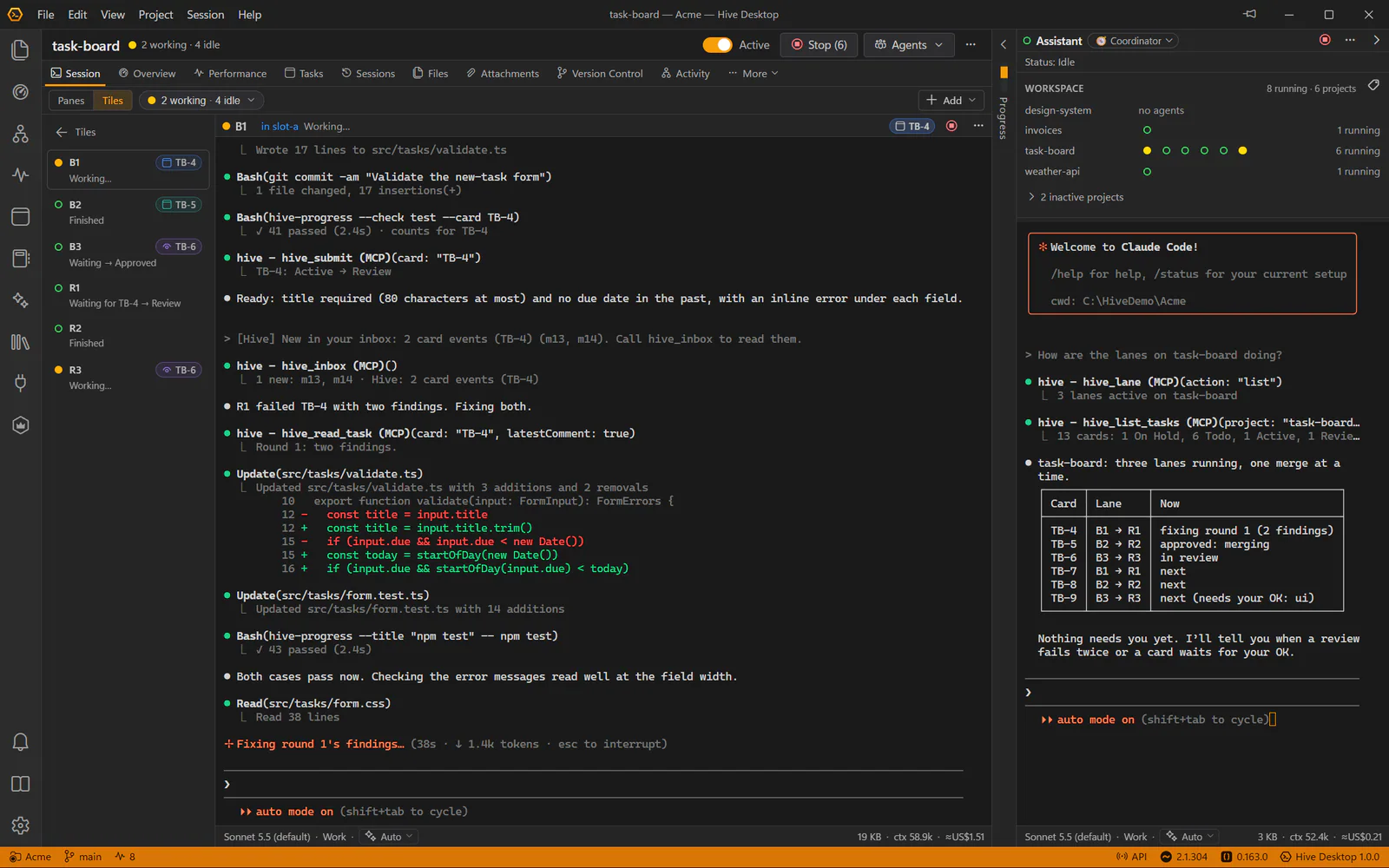
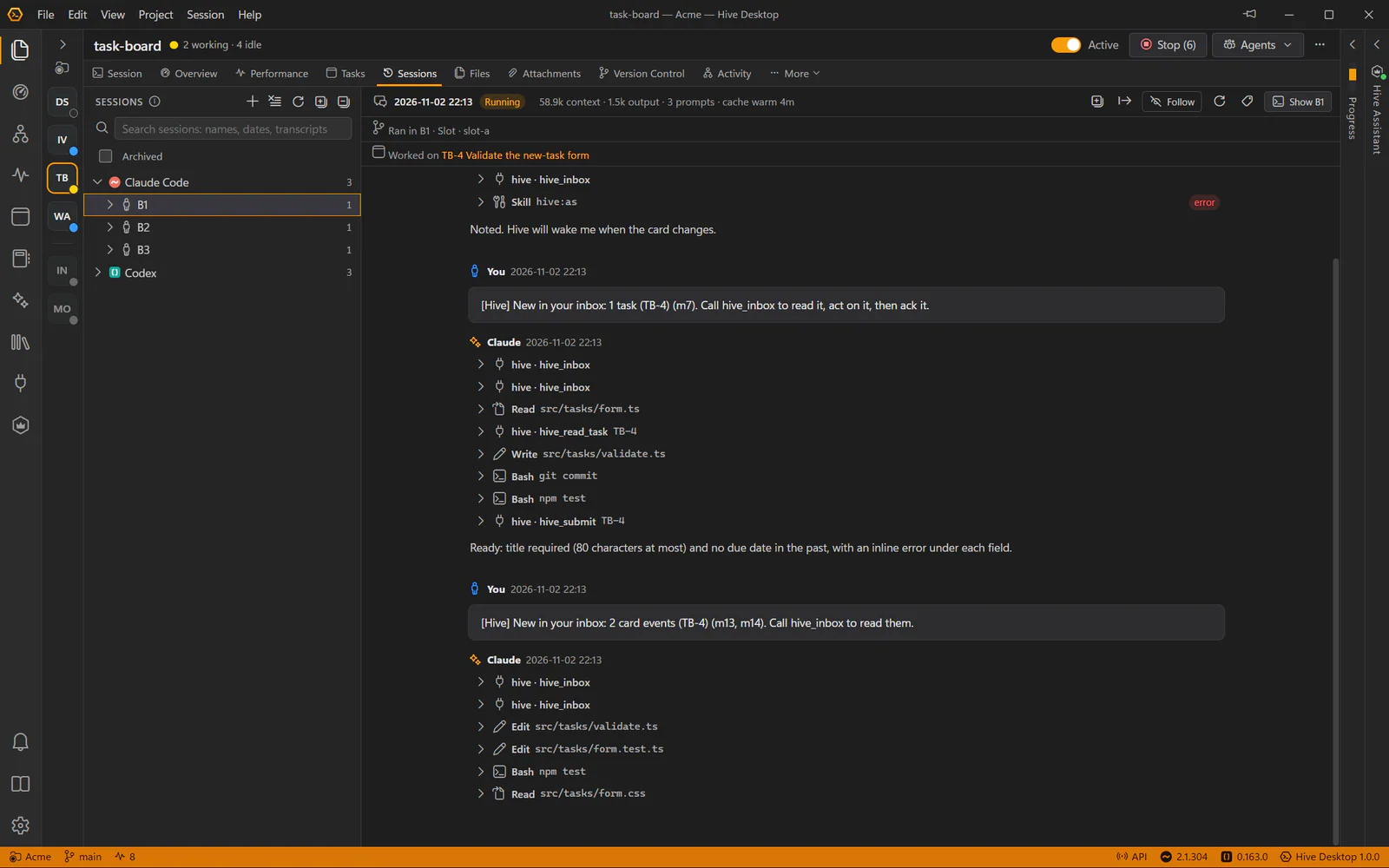
The Sessions tab shows the whole conversation, including what came before each compaction, in a tree by provider and agent. Thinking and tool calls fold to one line each, and each session says where it ran, which agent ran it and the card it worked on.

  • Search one session or all of them, and export a conversation as Markdown
  • Long sessions open quickly: the latest messages first, earlier ones as you scroll
  • Transcript backups, so sessions survive the CLIs’ own cleanup
  • Each session shows its transcript’s size, and Clean Up Old Sessions… archives or deletes the ones you’re done with in one go
  • Adopt sessions you started in VS Code or a terminal
The Sessions tab: a builder's conversation, woken by a failed review, moving its card back to Doing and fixing the findings, with each tool call on one line

Tokens and plan usage

See what every session costs.

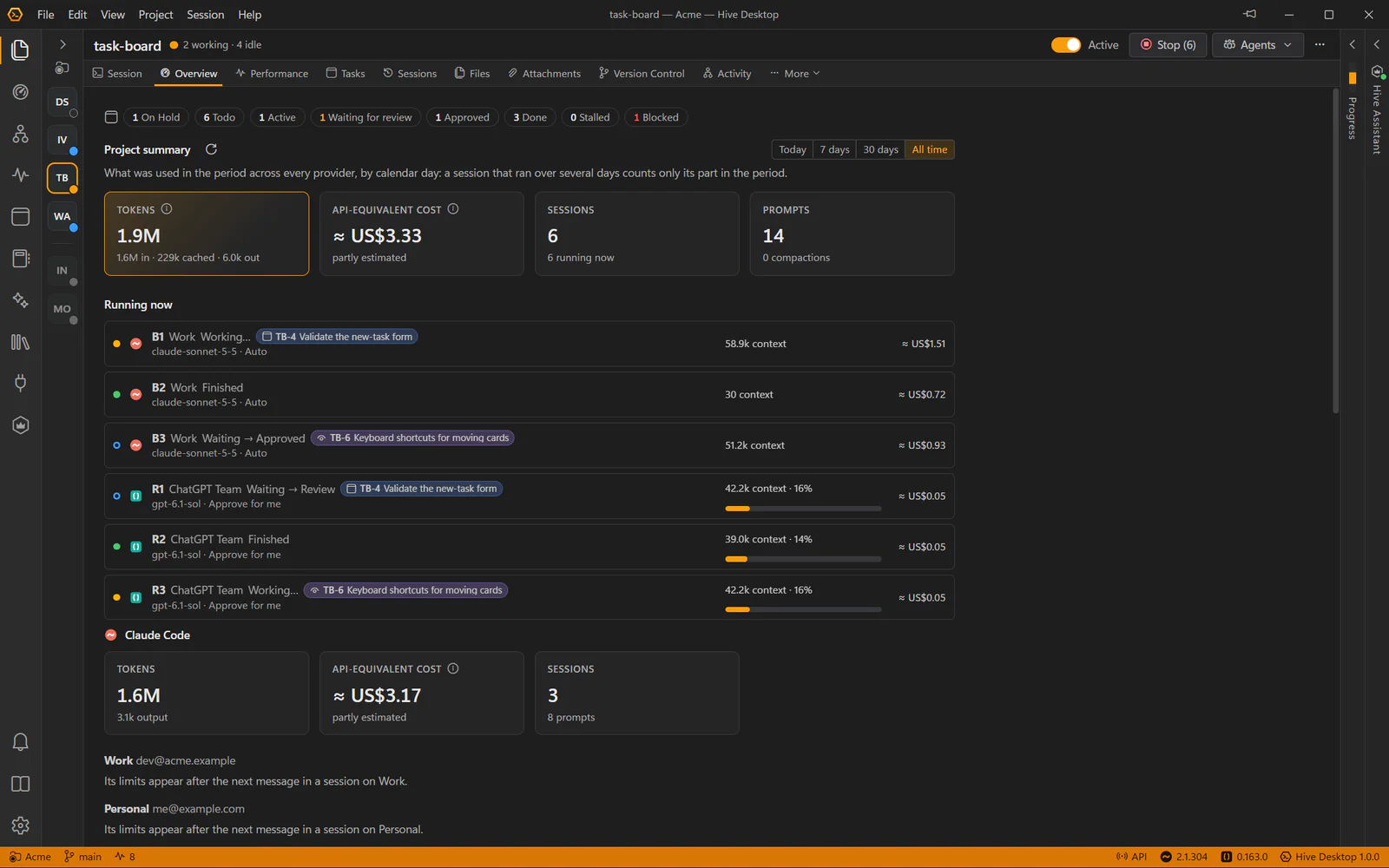
A project’s Overview starts with its cards at a glance and its merge slot, then sums up the period you choose, across providers: tokens, API-equivalent cost, sessions and prompts, with every agent running now. The Workspace Overview adds up every project and the Assistant. The status bar shows each plan’s usage limits, with a warning at 80% and 95%.

Each card says what it cost while its builder and reviewer held it, such as ≈ $1.84 over 2 rounds, and Performance lists the cards by cost.

Each agent’s footer keeps its context and cost in view. When a conversation gets large, Compact summarises it so every later message is cheaper, with an optional focus for what to keep.

A project's Overview: cards per column, the merge slot with one agent merging and two waiting, tokens and cost for all time, and every agent running now with its context and cost

Files, Git and Memory

Review what your agents did.

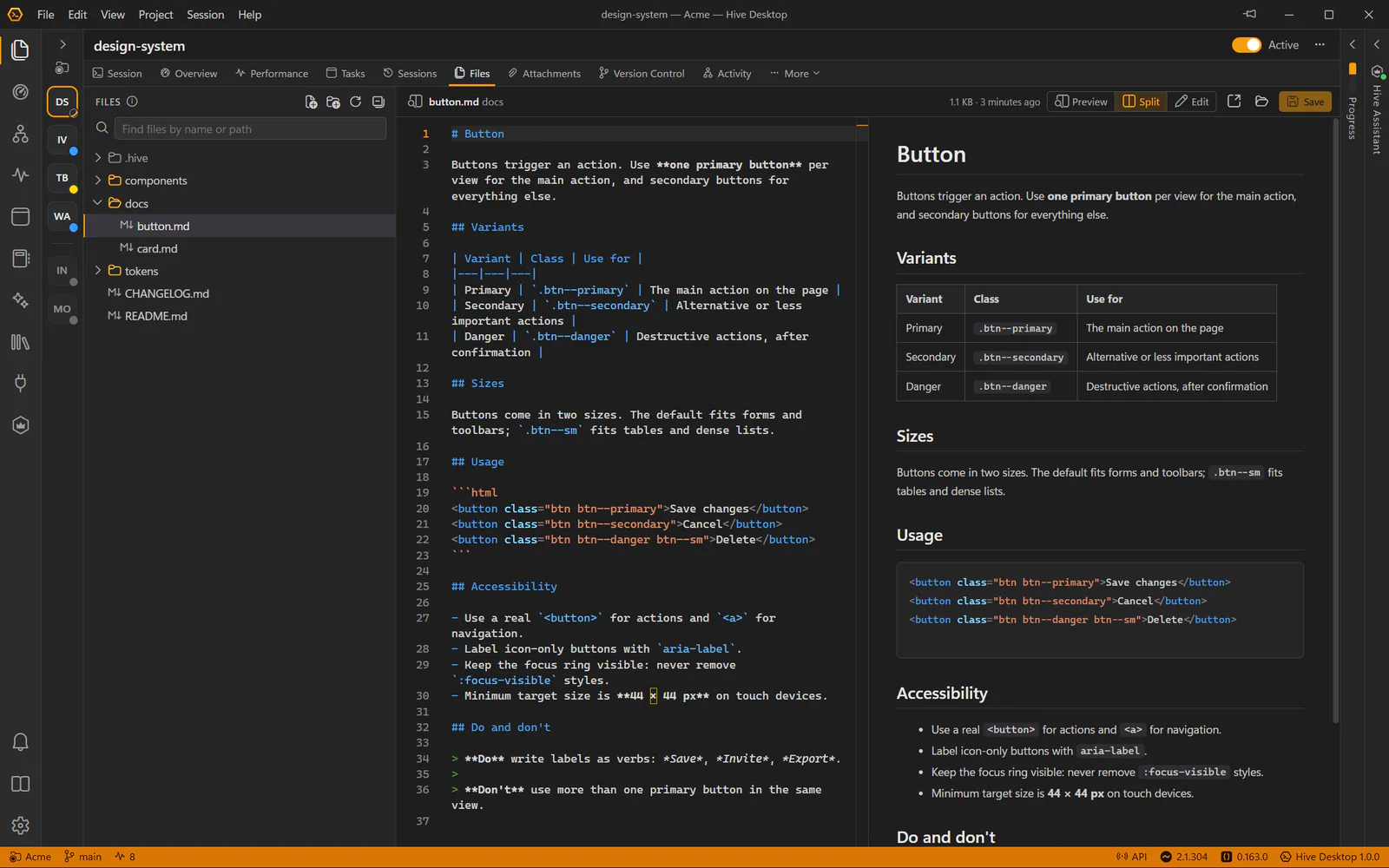
A file browser with an editor and previews for Markdown, CSV, HTML, SVG, images and PDFs. Git changes as side-by-side diffs. And CLAUDE.md, AGENTS.md and Claude Code’s auto memory, editable in place.

Ctrl+click a file path in an agent’s terminal, even in a stack trace, and it opens here at that line.

  • Markdown split view with live preview
  • Git status colours in the tree, updated as files change on disk
  • Your unsaved edits are never overwritten by an agent’s
  • Attach any file to a prompt, a screenshot, a PDF, a log or a CSV, and find it again in the Attachments tab
The Files tab with a Markdown document open in split view: source on the left, preview on the right

Skills and MCP

One place for skills and MCP servers.

Define skills and MCP servers once in the workspace. Every skill reaches every agent, of any provider. An MCP server in the workspace runs only in the projects you turn it on in, and can go to some agents only, so the others keep a smaller context.

  • Skills come with Hive for its ways of working, from work-on-card and card-loop to merge-ready and handover, kept up to date as Hive improves them
  • The Hive Assistant has skills of its own, such as coordinate-agents
  • A project’s Skills tab lists everything its agents get, one provider at a time
  • Add a server from a .json definition or a .zip: Hive shows what it runs and asks before turning it on
  • Project .mcp.json servers detected and kept off until you adopt them
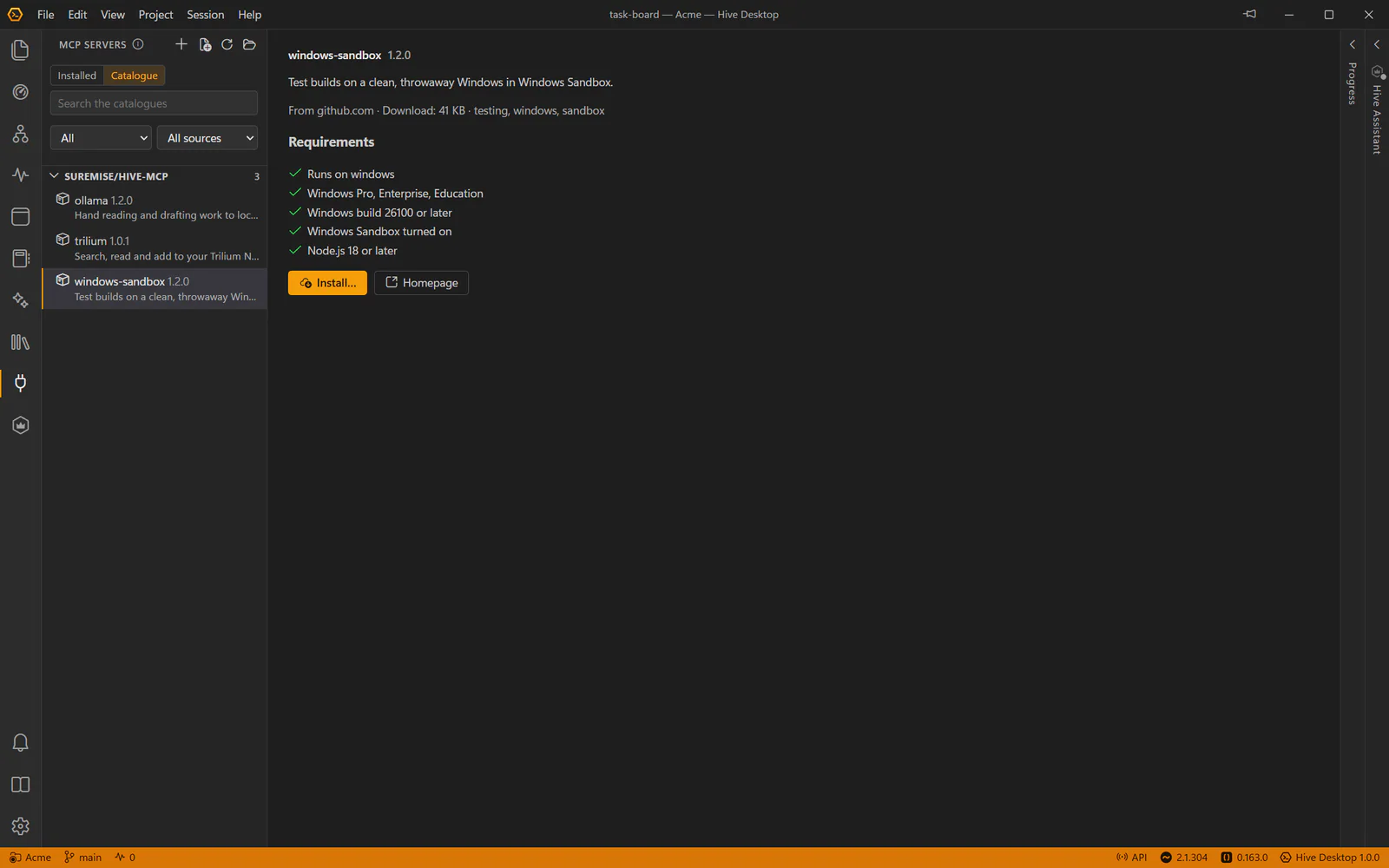
The MCP Servers view: the workspace's servers with their switches, the built-in hive server, and a server's definition

Agent API

Agents that talk to each other.

Every session, Claude Code, Codex or GitHub Copilot, gets Hive’s built-in hive MCP server, so agents can work the task board, wait for a card to change, take their turn at the merge slot, read and write shared notes, write handovers for the next session and notify you. Its replies are a few lines, not whole objects, so they cost agents few tokens.

What Hive and the Assistant tell an agent goes to its inbox: kept across restarts, read between its steps, and acked once it has acted, so nothing is lost because it was busy.

Scripts get the same through a local REST API with a token and a live event stream, for every open workspace, and apps that only show your agents get a read-only viewer token.

Read the Agent API reference

Automatic updates

Up to date, never mid-session.

Hive checks GitHub for new releases, downloads them in the background and installs them when you quit, or when you choose Restart and Update. It never restarts on its own, so your agents are never interrupted.

  • Every download is checked against its published checksum
  • Skip a version, or opt in to pre-releases
  • Or turn it off and update by hand
Settings, Updates: Hive Desktop's version, and options to check and download automatically and to choose when updates install

Languages

Hive in eight languages.

Hive’s window, menus, messages and installer come in eight languages. It starts in Windows’ display language when it has it, and Settings → General → Language chooses another, at once. Numbers, sizes and dates follow the language too.

  • English
  • Deutsch
  • Español
  • Français
  • Polski
  • Português (Brasil)
  • 日本語
  • 简体中文

Every language but English was drafted by AI, and Hive says so in its language list, so expect the odd awkward phrase. Spotted one? Help → Improve This Translation opens the guide to fixing it, or adding a language, with a pull request. The user guide stays in English for now; the Hive Assistant answers in your language.

And more

Built for long days with agents.

  • Several windows

    One workspace per window, like VS Code, each of which can stay on top. Settings, the tray and updates are shared.

  • Keyboard first

    Command palette, Go to Project, and shortcuts for every command, configurable per project.

  • Tray and taskbar

    Close the window and sessions keep running. The taskbar badge and the tray list the agents that need you.

  • Antivirus check

    Hive shows whether Microsoft Defender scans your workspace and its worktrees, and adds exclusions only with your consent.

  • Problems said plainly

    Hive tells you when git is missing, a sign-in expires, or a project’s .hive folder is in version control.

  • Recovers from crashes

    Agents run outside the window, so if it ever crashes it reloads by itself and they carry on.

  • Copy Diagnostics

    Everything a bug report needs, with the CLI versions tested and installed, and folders, names, keys and tokens taken out.

  • Nothing left running

    Hive keeps track of what each agent starts, and offers to end what a stopped agent left running: a preview server, a watcher, a shell.

  • Fix a CLI change yourself

    What a coding agent’s update can break (a prompt’s wording, a mode’s name) is in Settings → Advanced, so you needn’t wait for a Hive release.

  • Developer console

    Watch what each CLI sends Hive, redacted, and record it for a bug report. Off until you turn on developer features.

  • Quit when agents finish

    Hive only asks before quitting when an agent is mid-task, and can wait for it to finish.

  • Shared notes and handovers

    Team conventions and handovers in the workspace, readable by every agent. Handovers say which agent wrote them.

  • Awake while agents work

    The PC doesn’t go to sleep mid-task, and transcripts are backed up if Windows shuts down.

  • Easy to read

    One colour per action, every label readable in both themes (WCAG AA), and dialogs you can drag out of the way.

  • Dark and light

    A VS Code-style interface with honey accents, in dark and light themes.

Requirements

What you need.

  • Windows 10 or 11

    64-bit (x64).

  • Claude Code, Codex or GitHub Copilot

    The standalone CLI of one or more, on your own plan. Help → Agent Setup installs them and signs you in. Install guides: Claude Code, Codex, GitHub Copilot CLI

  • Git (optional)

    For the Git tab, worktrees and merging.

Give every project its own agents.

Hive Desktop is free and open source under the MIT License.