Replica
Versioned backups for Windows that run by themselves, and tell you when they didn’t.
No telemetry, ever. Replica sends nothing anywhere, has no account and doesn’t check for updates. It connects to nothing but the targets you set up: your drives and your NAS shares.
What it is
Replica backs up your folders to an external drive or a NAS share on a schedule. Each backup is a snapshot you can go back to, so a file you deleted, overwrote or lost to ransomware last Tuesday is still there.
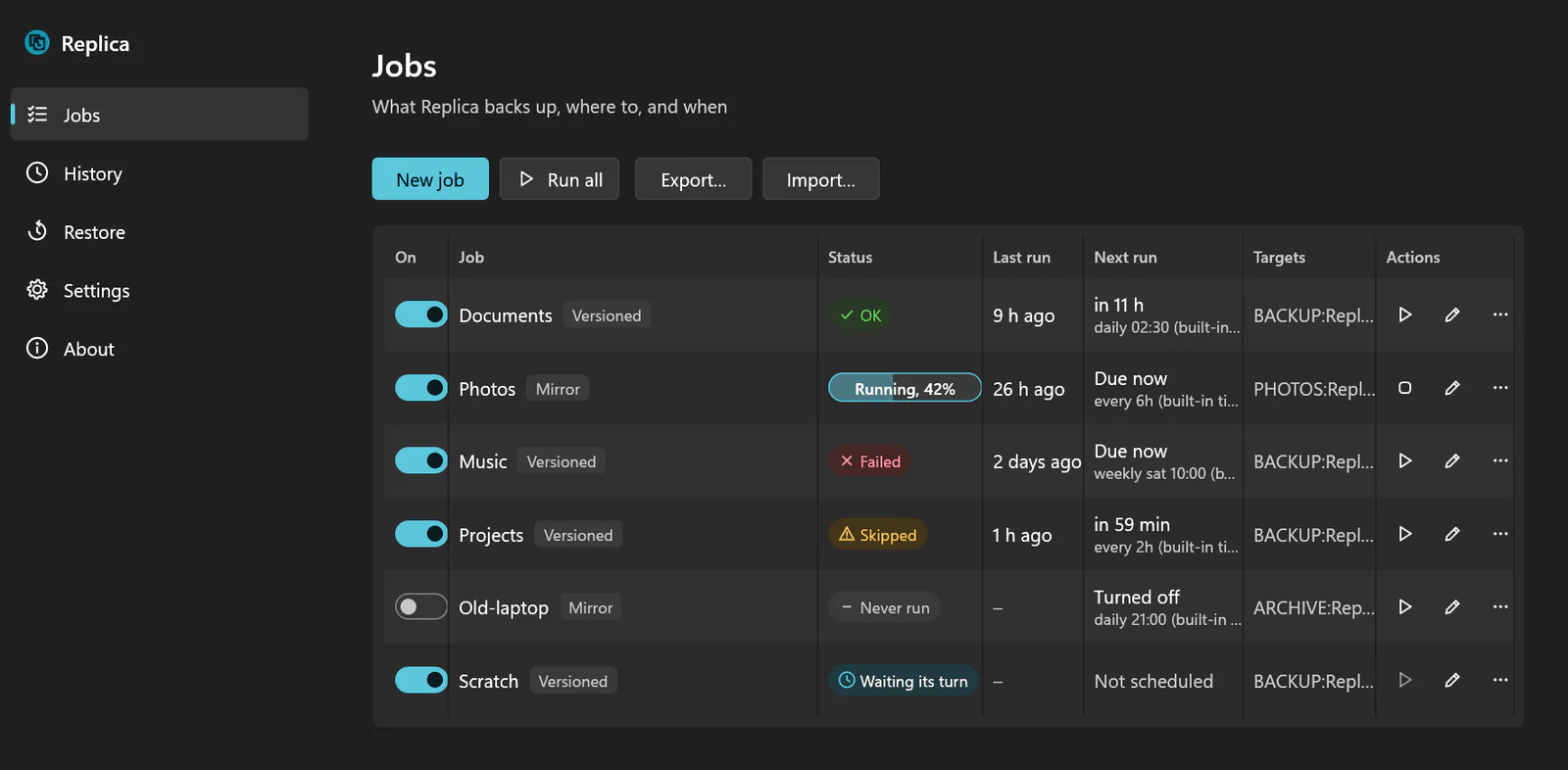
It runs from the tray, from Windows Task Scheduler if you like, or from the command line, and every run ends with a clear result: done, partly done, skipped (the drive wasn’t plugged in) or failed, and why. It drives restic for its snapshots and bundles a pinned copy, so there’s nothing else to install.
What it does
- Versioned backups by default: each run adds a snapshot, encrypted, deduplicated and kept as long as the job’s retention says, such as 7 daily, 4 weekly and 6 monthly
- Mirror jobs for a plain copy you can open in Explorer, only when asked for, stopping without deleting anything if a run would delete more than a set share of the target’s files
- Schedules such as
daily 02:30orevery 6h, from the tray app or as per-user Windows Task Scheduler tasks (no admin rights) - Steps before and after a run: a consistent copy of a live SQLite database, a command, a regular
restic check - A drive found by its volume ID or label, whatever letter Windows gives it today; a NAS share’s login kept in Windows Credential Manager
- A command line for scripts and other apps:
replica run <job> --quietexits with the run’s result, and--jsonprints results for programs to read
A backup you can trust
- A target that isn’t there is skipped, not failed (the drive is unplugged, the NAS is off), and the next run catches up. A failure always notifies you.
- A restore goes to a new or empty folder, never over your files, unless you ask for that.
- Recover without Replica: the backups are plain restic repositories, each with a
HOW-TO-RESTORE.txtbeside it. All you need is the repository folder and its password.
Ways to get it
Every release on GitHub has these downloads.
| Download | What it is |
|---|---|
replica-<version>-x64.msi | The one most people want. Installs for you alone, with no admin rights, starts the tray app (which then starts when you log on) and adds replica to your PATH. |
replica-<version>-portable.zip | Unzip it anywhere, such as a USB stick: settings, history and logs are kept beside the exes. |
SHA256SUMS.txt | Each download’s SHA-256, to check it before you run it. |
With Hive Desktop
Back up a workspace as you finish with it: name replica run <job> --quiet as a command in Hive Desktop’s Settings → Commands and pick it for When this workspace closes, run. It prints nothing unless something goes wrong.
Before you use it
- Save a copy of each repository password. Each versioned target is encrypted with its own password, kept in Windows Credential Manager, which goes with the PC: lose it, and the backup can’t be read by anyone, Replica included.
- Not code-signed yet, so Windows SmartScreen may warn about the downloads: check each against
SHA256SUMS.txt, then choose More info → Run anyway. - No automatic updates: Replica doesn’t check for new versions. Look at its releases on GitHub.
Open source
Replica is free and open source under the MIT License.